
Everything it does.
Exactly how to use it.
From the first plain-text note to links, files, widgets, recovery, export, and optional Google Drive sync—find the feature, follow the steps, and keep your originals yours.
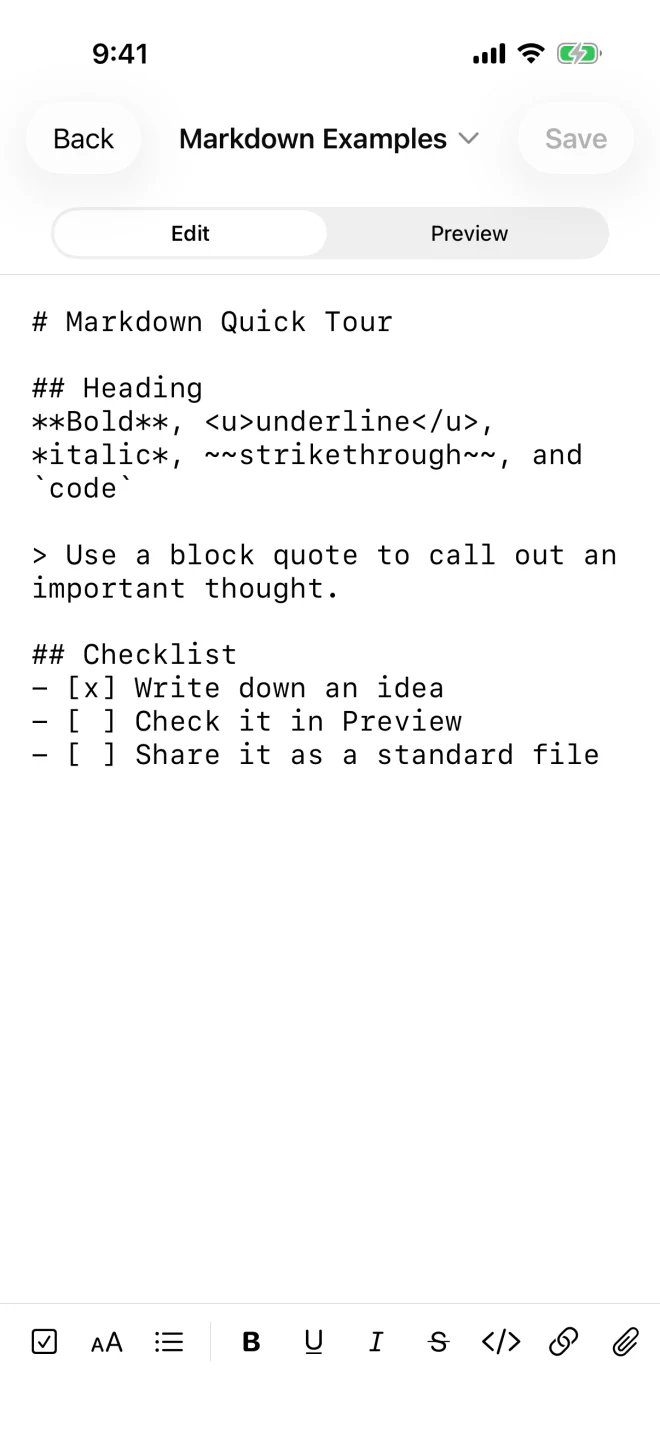
Write clean Markdown, preview it beautifully, and also open other safe UTF-8 text or source files when needed.
Store photos, PDFs, archives, and other originals beside notes with portable relative links.
Use drafts, version history, Recently Deleted, and an independent ZIP whenever you need them.
Connect your own Google Drive only when you want more than one device to share the file tree.
Open only the answers you need, or expand the complete manual.
Start and everyday use
Create, find, open, and save notes without an account or network connection.
How do I create my first document, and which format should I choose?
- Choose New Note from the list or sidebar.
- Enter a file name, choose a destination folder, and select a common format or type an extension in the name—including no extension or a development dotfile.
- Use TXT for plain writing and Markdown for headings, checklists, links, code, or inline images. HTML, JSON, XML, CSV, YAML, PHP, ASP/ASPX, JavaScript, CSS, SQL, and many other source formats stay in their original syntax.
- Write, then choose Save. The result is a normal UTF-8 file, not a proprietary note record.
How do search, sorting, and external documents work?
The search field checks file names and safely readable UTF-8 text at the same time without case sensitivity. Sort the list by date edited or name. Photos and binary files are found by file name and can be opened or shared from their item menu.
To work with a safe UTF-8 text or source file outside the app’s own folder, open it through the iOS Files app or Android system file picker. Kihya Memo edits it in place while the operating system continues to grant access. Invalid UTF-8, NUL-containing data, and known binary formats are kept as attachments instead of being exposed to the text editor.
What happens if I leave an edited note without saving?
Back, the back-swipe gesture, switching notes, or switching folders never silently decides for you. Choose Save, Discard, or Keep Editing. While you type, the editor also keeps a short-delay private recovery draft so an interrupted session can reopen after an unexpected exit.
Why does the app look different on a phone and a tablet?
Phones use a simple list → editor flow. Tablets show folders → files → editor in three panes so you can move through a larger workspace without losing context. The tablet editor can also switch to full screen. Rotation, split view, and software or hardware keyboard space are supported.
Writing, Markdown, links, and files
Use lightweight formatting and keep every attachment as a file you can inspect elsewhere.
Which Markdown features can I write and preview?
The toolbar supports headings, bold, underline, italic, strikethrough, lists, block quotes, code, links, attachments, and checkboxes. A regular note opens in native Preview by default, then remembers the last Edit or Preview view you used after you leave and reopen it. Quick Capture still opens ready to type.
Preview checkboxes can update the same Markdown source. The marker texture behind bold and underlined text is only a display preference and never changes the file.
How do I find or replace text inside an open file, including with regular expressions?
Tap the file name in the editor, open Find & Replace, then choose Find, Replace, or Replace All. Move through previous and next matches and turn case sensitivity on or off.
Enable Regular Expression to search code or repeated text with a pattern. Replacement text accepts numeric capture groups such as $1 and $2. Replace All shows the affected match count and asks for confirmation.
What happens when I paste formatted text?
In Markdown, regular paste reads HTML, RTF or styled text and converts headings, emphasis, code, links, lists, quotes, line breaks, checkboxes, and underline into readable Markdown where possible. Paste as Plain Text always inserts only characters.
In HTML, JSON, PHP, ASP/ASPX, JavaScript, SQL, and every other non-Markdown document, copy, cut, paste, and text drag-and-drop are always plain text. Syntax colors and fonts exist only on screen and never enter the file or clipboard. Images embedded only in clipboard formatting are not uploaded.
How do I add a web link or link to another note?
Use the Link button or write standard Markdown. A web link uses a full HTTPS address; another note or stored file should use a path relative to the current document.
[Open the project plan](../Projects/plan.md)
Preview shows a clear link marker. Relative TXT and Markdown links can also be followed inside the read-only Home Screen document view, with a Back button to return.
How do I insert a photo, PDF, archive, or another file?
- Open a Markdown note and choose the attachment button.
- Select Insert Photo or Insert File, then choose an item from the system picker or one already stored in Kihya Memo.
- The original file is copied into the visible user file tree with a collision-free name.
- The editor inserts a relative Markdown image or file link. Supported images appear inline in Preview; PDFs, ZIP files, and other files appear as links you can open or share.
[Project archive](Files/project.zip)
Will links update automatically if I rename or move an attachment?
No. A relative link is deliberately ordinary, editable text, so the app does not rewrite every Markdown file when a related file moves. Keep the note and its related files together inside the same parent folder when possible, or edit the path after renaming or moving the target.
How do I rename, move, share, or open one note or file elsewhere?
Open the item menu—or the arrow beside an open document title—and choose Rename, Move to Folder, or Share. Sharing grants temporary access only to the item you selected. On iOS, the app’s document folder is also visible in Files; on Android, Kihya Memo appears in compatible system file apps through the Documents provider.
Folders and file management
Build a nested workspace, reorganize it safely, and avoid accidental overwrites.
How do I create local folders or add a remote server folder?
For local folders, choose New Folder from the folder selector, sidebar, or Folder Management screen. Enter a name and choose My Notes or an existing folder as the parent. This real directory tree is also used for ZIP export and Drive sync.
To work on a server, choose Remote Folders… from the phone’s folder selector or the tablet’s left folder sidebar, then choose Add Server. Select SFTP, plain FTP, explicit FTPS, or implicit FTPS, and enter a display name, host, port, and user name. Starting Path is optional. Leave it blank to start in the server account’s login home, shown as Home. Enter / only when you want the server-wide root, shown as Root, or enter a path when you need a specific starting folder. Both platforms support SFTP password and Ed25519 OpenSSH-key authentication; Android also supports RSA-SHA2 keys. FTP-family connections let you choose UTF-8, CP949, or EUC-KR file-name decoding for older servers. Use Back in the remote screen to return to the unchanged local folder view.
How do I move or rename a note without losing its versions?
Use the note menu and choose Move to Folder or Rename. The app moves its internal document identity with it, so local version history and a valid recovery draft continue to belong to the same document. If the destination already has the same name, Kihya Memo creates a safe numbered name rather than overwriting it.
What can I do in Folder Management?
Open Folder Management from the list or sidebar. Create, rename, move, and delete folders from one screen. Touch and hold the drag handle to move a folder under My Notes or another folder; a confirmation appears before the structure changes. A folder cannot move inside itself or one of its descendants.
What happens when I delete a folder that still contains items?
The app first shows the number of child folders, files, and their approximate size. Then choose one of two safe actions:
- Move contents, then delete the empty folder: choose another destination; duplicate names are separated automatically.
- Move the folder and everything inside to Recently Deleted: the whole tree stays recoverable until you permanently delete it.
How are imported file names kept compatible?
Imported names are normalized to Unicode NFC, Windows-forbidden characters and reserved names are repaired, and collisions receive a number such as “Name 2.md.” This helps Korean names, ZIP archives, Windows, macOS, iOS, and Android agree on the same visible path. Recognized development dotfiles such as .env, .gitignore, and .editorconfig keep their leading dot, while app-private hidden paths remain blocked.
Version history, drafts, and deletion
Understand what can be restored, what remains private, and what permanent deletion means.
When is a local past version created, including for a remote file?
For any app-managed safe UTF-8 text or source document, the previous final text is saved in private local storage immediately before different content replaces it. Saving identical content does not create a duplicate version. Versions follow a local document through app-managed renames and moves.
For a remote document, typing updates only a device-private recovery draft. Save downloads the server file again and compares it with the opening baseline. If it changed, nothing is overwritten: compare the server version, put a non-overlapping three-way merge into the editor, save under another name, or explicitly record both versions and overwrite. Before replacement, the server’s latest text is stored in local history. The app uploads a temporary sibling, verifies its bytes, preserves the previous target as a temporary backup, renames, verifies again, and attempts rollback on failure while retaining your draft.
How do I preview or restore a past version?
- Open the document menu beside the title.
- Choose View Past Versions.
- Preview the version you need, then choose to load it into the editor.
- Review it. Loading changes only the editor buffer and recovery draft; the current file is not replaced until you choose Save.
What is the crash-recovery draft?
While you edit, a private local draft is updated after a short delay. If the app closes unexpectedly, the latest valid draft and document can reopen next time. This draft is not a second visible document, never changes the original text/source format, and is excluded from Drive sync and ZIP export.
How do Recently Deleted, Restore, and Permanent Delete work?
Deleting a note, stored file, or folder first moves it to Recently Deleted. There you can see its original location, deletion time, and size, then restore or permanently delete it. If the old location now contains the same name, restore creates a safe numbered name instead of overwriting the replacement.
Can I lock Recently Deleted, and what does “Delete all version history” remove?
In Settings, you can require Face ID, Touch ID, device passcode, Android biometrics, or the system screen lock before Recently Deleted opens. The app receives only success or failure; it does not read your biometric data or passcode. This protects the screen but does not convert files to a proprietary encrypted format.
Delete all version history removes only ordinary past versions on that device after a typed confirmation. Current notes, recovery drafts, Recently Deleted, and Google Drive sync safety records remain.
Widgets and Home Screen access
Start a blank note, write from a daily thought, or open one document in a tap.
How do I add a Kihya Memo widget on iPhone or iPad?
- Touch and hold an empty area of the Home Screen until the apps jiggle.
- Choose Edit or the + button, then Add Widget.
- Find Kihya Memo in the widget list.
- Choose Quick New Note or A Thought for the Moment and select a size.
- Choose Add Widget, move it where you want, and finish editing.
The app cannot open Apple’s widget gallery or place a widget automatically. The same steps are available inside Settings → Home Screen Widgets → How to Add.
How do I add a widget on Android?
- Touch and hold an empty area of the Home screen.
- Choose Widgets.
- Find Kihya Memo, then touch and hold a widget or choose Add.
- Place it, then touch and hold it to resize if your launcher supports resizing.
You can also choose Add Widget in the app’s Home Screen Widgets settings. Menu names and automatic placement behavior vary by launcher.
How does the Quick New Note widget save?
One tap opens an empty editor with the cursor and keyboard ready. No file exists yet. A normal TXT or Markdown file is created in your default folder only after you enter content and save. Closing the untouched editor leaves no blank note or recovery draft.
How does the quote widget work?
The widget shows an offline bundled thought and source for morning, afternoon, evening, or late night in the language selected inside the app. Tap it to open a draft containing the quote and a 4:5 share-ready image card. The note and PNG become real files only after you add or change something and save; closing unchanged leaves neither file behind.
How do I put one specific document on the Home Screen?
Open the note’s title menu and choose Add to Home Screen. On Android, confirm the pinned shortcut request from your launcher. On iPhone or iPad, save the note, then follow the shown Shortcuts steps: create a shortcut, add the Open Memo Document action, select the document, and use Share → Add to Home Screen.
The icon opens a read-only, full-screen native preview. Back returns through linked documents first; at the first document, Back or Close returns to the app’s memo list.
Export, backup, and moving on
Create an independent copy of the files you can keep, inspect, and open without Kihya Memo.
How do I export everything as a ZIP?
- Open Settings and choose Export All Files as ZIP.
- Review the folder count, file count, and approximate original size.
- Choose Export and keep the app available while progress is shown.
- On iOS, save or share the finished ZIP from the system share sheet. On Android, the ZIP is published to Downloads and can also be shared.
What is included—and excluded—from the ZIP?
The ZIP includes every visible user folder, all original text and source documents, photos, PDFs, archives, and other stored files in the same hierarchy. It excludes Recently Deleted, ordinary version history, crash-recovery drafts, sync indexes, document identity records, and temporary files.
How should I make an independent backup or use another editor?
Export a ZIP before a major reorganization and periodically according to how valuable your documents are. Store that copy somewhere independent of the phone and of a single app. Extract it with a normal ZIP tool and open each original extension—such as .md, .html, .json, .php, or .sql—in any compatible editor; photos and attachments remain ordinary files.
Kihya Memo does not trap you behind a special “restore” format. To bring files back, extract them first and use the system Files interface or the app’s file import/open actions. Keep related folder structures together so relative links continue to work.
Optional Google Drive sync
Connect only when you want multiple devices, and know what happens before either side can be replaced.
How do I connect Google Drive, and what should the permission screen say?
- Open Settings → Google Drive Sync and choose Connect Google Drive.
- Read the in-app permission explanation, then continue to Google.
- Choose your account and confirm that the app name is Kihya Memo and the permissions refer only to specific Drive files plus app configuration data.
- Allow access and wait for the first sync to finish.
Where are synced files stored, and what do the two Drive permissions mean?
Original text/source documents, photos, and other files stay unchanged inside a visible My Drive/Kihya Memo folder. drive.file covers only files the app created or that you connected to it—not your entire Drive.
drive.appdata stores a small workspace identifier and immutable safety records made before sync would overwrite one different supported UTF-8 text with another. A safety record contains the two pre-change texts, normalized path, file ID, time, and checksums; it is used only for version recovery and applies only within the documented size limit. It is not the current document format and is not visible in the normal Drive file list.
When does sync run, and is it real time?
Sync runs after first connection, when the app launches or returns to the foreground, when you choose Sync Now, shortly after local file operations, and periodically while the app remains in the foreground. Background execution is not guaranteed, so the next foreground session may finish pending work.
Can I keep writing offline after Drive is connected?
Yes. The editor always saves the local file first. If the network or Drive is unavailable, the local edit remains usable and sync resumes later. Before editing the same note offline on two devices, remember that both devices may then have changes to merge when they reconnect.
What happens when two devices or another editor change the same file?
If only one side changed, that change is copied to the other side after checks. If both sides changed a supported safe UTF-8 text or source file, Kihya Memo attempts a line-based three-way merge from the last common text. Different-line edits can merge automatically, while both pre-merge texts remain in version history.
Overlapping edits, text larger than the protected limit, invalid UTF-8 content, or changed binary files are never silently collapsed. The remote side is preserved as a visible file named like “Name (Google Drive conflict date).ext”, and the local side also remains.
How do deletion and Drive disconnection work?
When a locally deleted item is unchanged on Drive, sync moves the Drive item to Google Drive trash. A confirmed remote deletion moves an unchanged local item to Recently Deleted. If the other side has a newer change, preserving that change takes priority over deletion.
Disconnect Google Drive stops automatic sync on that device and removes its access state. It does not delete local files, the visible Drive folder, or hidden safety records. To remove remote data too, disconnect first, then delete the visible folder and Kihya Memo’s hidden app data from Google Drive management yourself.
What should I try if sync is delayed or fails?
- Keep the local note; a sync error does not erase it.
- Check the network and available Google Drive storage, then return to the app and choose Sync Now.
- If access expired or was revoked, choose Reconnect Google Drive.
- Check Recently Deleted and the visible Kihya Memo Drive folder before repeating a delete or move.
- If a conflict copy appears, compare both visible files and keep the text you want.
If the problem continues, contact help@kihya.com with the app version, platform, approximate time, and the action that failed—but never send note text, file names, paths, Google account details, tokens, or authentication codes.
Settings, privacy, and support
Personalize the editor without changing files, understand network boundaries, and ask for help safely.
Which appearance and writing settings change the file?
Theme, whether lists show file extensions, editor text size, spell checking, preview marker texture, system font, and the five bundled Korean fonts change only the list, editing, or preview experience. File extensions are hidden by default; turning them on does not rename the actual files. These settings add no colors or hidden formatting data to any text or source file. The default extension and default folder affect only where new notes begin.
How do I change the app language, and does the widget follow it?
Open Settings → Language and choose English, 한국어, 日本語, or System Default. The main list and the rest of the app update immediately without an account or a manual refresh, and widgets use the same selected language. System Default follows the device language.
What works offline, and when does the app use the network?
Creating, editing, searching, previewing, folders, local versions, Recently Deleted, widgets’ bundled quotes, and ZIP export work without a Kihya account or memo server. The network is used for optional Google OAuth and Drive sync, Firebase Analytics, a remote-folder connection you explicitly add, and the memo website, guide, privacy policy, support, or non-commerce company page you open. Remote drafts and history remain available locally, but browsing and saving a server file require a live connection; this release does not queue an unconfirmed server upload while offline.
SFTP and FTPS encrypt the connection. Explicit FTPS never falls back to plain FTP after TLS failure. Plain FTP does not encrypt the user name, password, file names, or contents; use it only on a trusted legacy network after accepting the warning. Credentials are protected by the device-only iOS Keychain or Android Keystore. Connections go directly from your device to the server you entered—Kihya’s servers do not receive credentials or remote files.
Analytics may include a random app-instance ID, device and app version, approximate region, screen, session, and feature events. It excludes note text, remote contents, server host, user name, file or folder names and paths, searches, credentials, attachments, and Google account information. See the Privacy Policy for the complete boundary.
After enough use and a successful task, the system may show the official App Store or Google Play rating-and-review interface. There is no separate satisfaction screening question. The eligibility counters stay on the device, and the store—not Kihya Memo—handles anything you submit. You can also choose Rate & Review in Settings at any time.
How can I get help without exposing private notes?
Email help@kihya.com. Include your platform, app version, approximate time, the screen you were using, and a description of the action and visible error. Do not send note contents, file or folder names or paths, searches, attachments, Google account information, passwords, access tokens, or verification codes.
Try a shorter term such as “photo,” “folder,” “version,” “widget,” “export,” or “Drive.”